Cloud Storage
Cloud Storage for Firebase lets you upload and share user generated content, such as images and video, which allows you to build rich media content into your apps. Your data is stored in a Google Cloud Storage bucket — an exabyte scale object storage solution with high availability and global redundancy. Cloud Storage for Firebase lets you securely upload these files directly from mobile devices and web browsers, handling spotty networks with ease.
Get Started
Create a default Cloud Storage bucket
From the navigation pane of the Firebase console, select Storage, then click Get started.
Review the messaging about securing your Cloud Storage data using security rules. During development, consider setting up your rules for public access.
Select a location for your default Cloud Storage bucket.
- This location setting is your project's default Google Cloud Platform (GCP) resource location. Note that this location will be used for GCP services in your project that require a location setting, specifically, your Cloud Firestore database and your App Engine app (which is required if you use Cloud Scheduler).
- If you aren't able to select a location, then your project already has a default GCP resource location. It was set either during project creation or when setting up another service that requires a location setting.
If you're on the Blaze plan, you can create multiple buckets, each with its own location.
Warning: After you set your project's default GCP resource location, you cannot change it.
- Click Done.
Set up public access
Cloud Storage for Firebase provides a declarative rules language that allows you to define how your data should be structured, how it should be indexed, and when your data can be read from and written to. By default, read and write access to Cloud Storage is restricted so only authenticated users can read or write data. To get started without setting up Authentication, you can configure your rules for public access.
This does make Cloud Storage open to anyone, even people not using your app, so be sure to restrict your Cloud Storage again when you set up authentication.
Create a Cloud Storage reference
Create a Reference
Create a reference to upload, download, or delete a file, or to get or update its metadata. A reference can be thought of as a pointer to a file in the cloud. References are lightweight, so you can create as many as you need. They are also reusable for multiple operations.
References are created from the storage service on your Firebase app by calling the GetReferenceFromUrl() method and passing in a URL of the form gs://<your-cloud-storage-bucket>. You can find this URL in the Storage section of the Firebase console.
#include "Storage/Storage.h"
#include "Storage/StorageReference.h"
// 1. Get a reference to the root of your bucket using the gs:// URL
UFirebaseStorageReference* RootRef = UFirebaseStorage::GetReferenceFromUrl(TEXT("gs://your-app.appspot.com"));
// 2. Create a reference to a specific file path
UFirebaseStorageReference* SpaceRef = UFirebaseStorage::GetReferenceFromPath(TEXT("images/space.jpg"));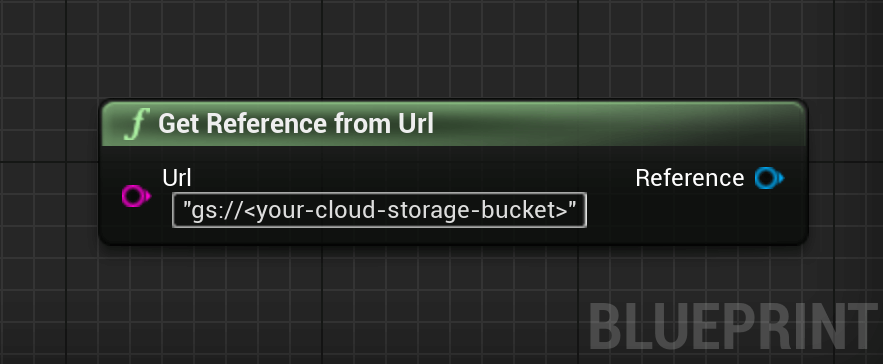
You can create a reference to a location lower in the tree, say 'images/space.jpg', by using the child method on an existing reference.
// 3. Create a reference relative to an existing reference using Child()
// This points to "images/stars.jpg"
UFirebaseStorageReference* StarsRef = SpaceRef->GetParent()->Child(TEXT("stars.jpg"));
// 4. Navigate back up the tree
// ParentRef points to "images/"
UFirebaseStorageReference* ParentRef = SpaceRef->GetParent();
// 5. Get basic info from the reference
FString FileName = SpaceRef->GetName();      // "space.jpg"
FString FullPath = SpaceRef->GetFullPath();  // "images/space.jpg"
FString Bucket   = SpaceRef->GetBucket();    // "your-app.appspot.com"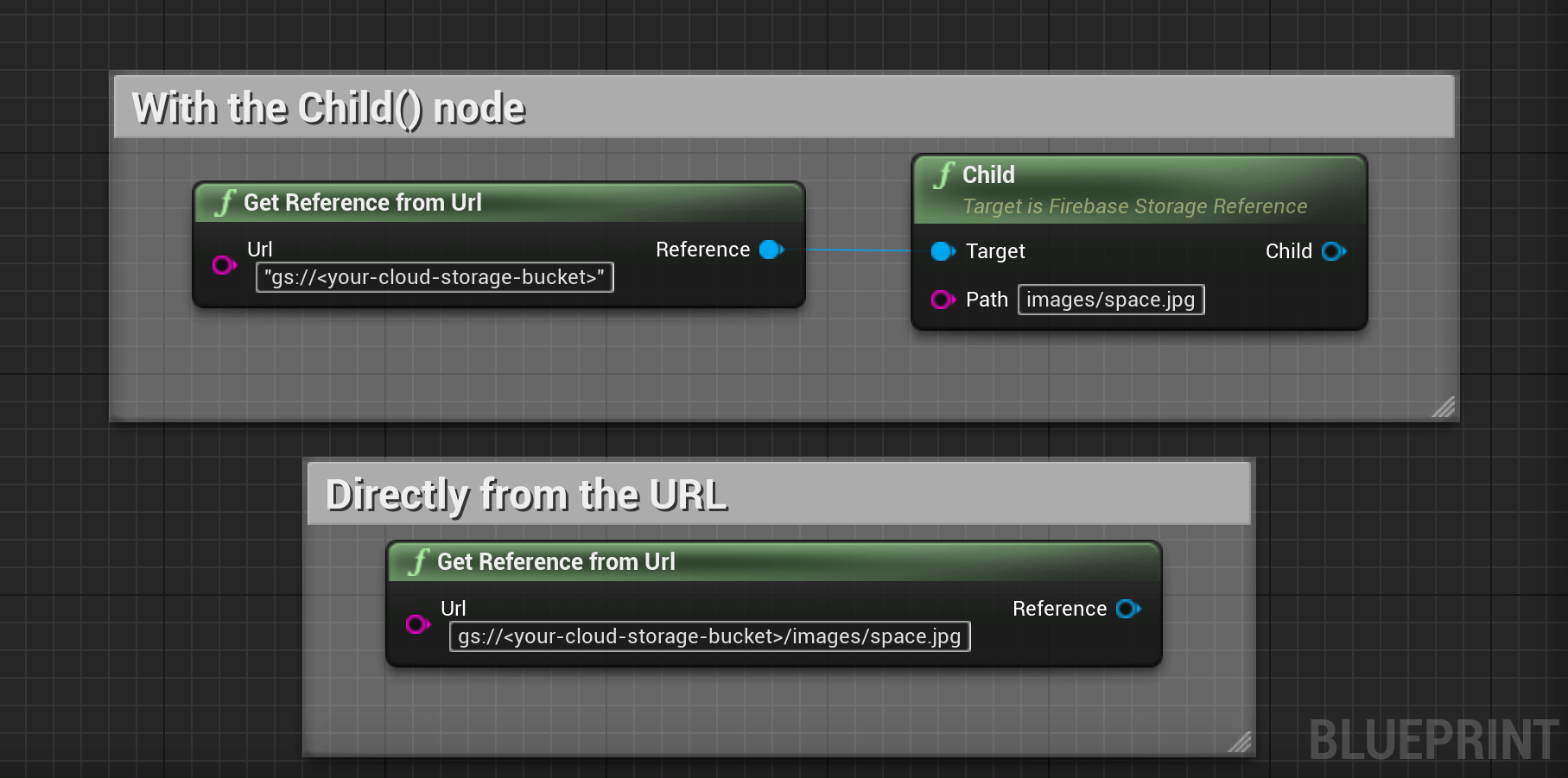
Navigate with References
You can also use the Parent and Root methods to navigate up in our file hierarchy. Parent navigates up one level, while Root navigates all the way to the top.
Child, Parent, and Root can be chained together multiple times, as each returns a reference. The exception is the Parent of Root, which is an invalid StorageReference.
Upload Files
Once you have a reference, you can upload files to Cloud Storage in two ways:
- Upload from a byte buffer in memory
- Upload from a file path representing a file on device
Upload from data in memory
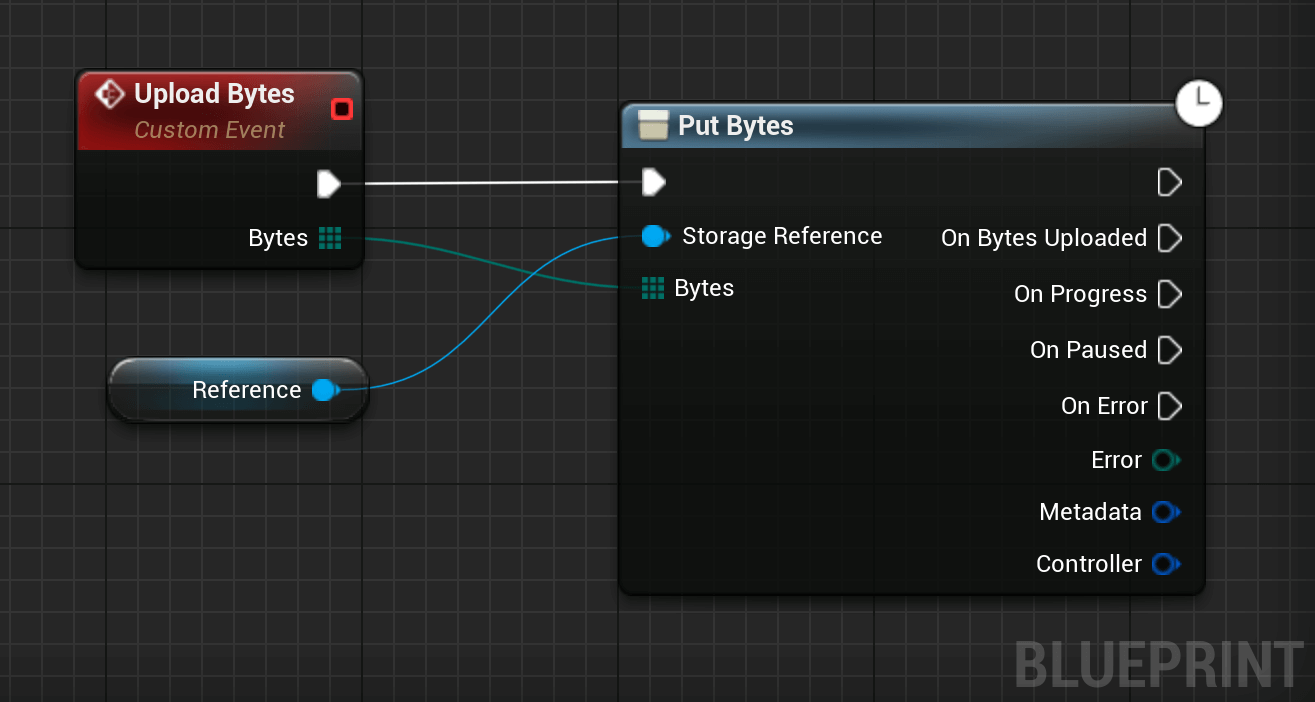
The PutBytes() method is the simplest way to upload a file to Cloud Storage. PutBytes() takes a byte buffer and return a Metadata which will contain information about the file when the upload completes. You can use a Controller to manage your upload and monitor its status.
#include "Storage/Storage.h"
#include "Storage/StorageReference.h"
// 1. Prepare your data and controller
TArray<uint8> DataToUpload;
// ... fill DataToUpload with your binary data ...
FFirebaseStorageController Controller;
// 2. Start the upload
// We'll use a reference to "images/mountains.jpg"
UFirebaseStorageReference* StorageRef = UFirebaseStorage::GetReferenceFromPath(TEXT("images/mountains.jpg"));
StorageRef->PutBytes(
    DataToUpload,
    Controller,
    FFirebaseStorageMetadataCallback::CreateLambda([](const EFirebaseStorageError Error, const FFirebaseStorageMetadata& Metadata)
    {
        if (Error == EFirebaseStorageError::None)
        {
            UE_LOG(LogTemp, Log, TEXT("Upload Complete! File size: %lld"), Metadata.GetSizeBytes());
        }
        else
        {
            UE_LOG(LogTemp, Error, TEXT("Upload failed. Error Code: %d"), (int32)Error);
        }
    }),
    FFirebaseStorageControllerCallback::CreateLambda([](FFirebaseStorageController& ProgressController)
    {
        float Progress = (float)ProgressController.BytesTransferred() / (float)ProgressController.TotalByteCount();
        UE_LOG(LogTemp, Log, TEXT("Upload Progress: %f%%"), Progress * 100.0f);
    })
);
Upload from a local file
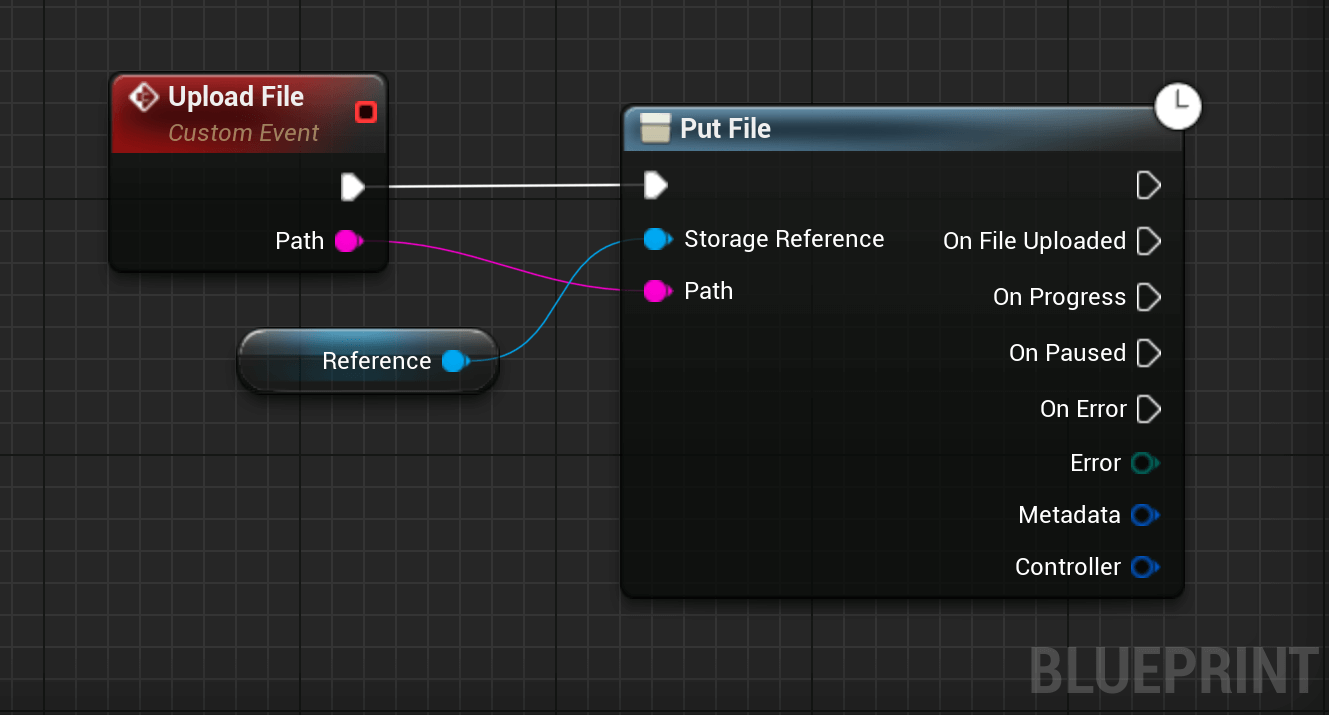
You can upload local files on the devices, such as photos and videos from the camera, with the PutFile() method. PutFile() takes a FString representing the path to the file and returns a Metadata which will contain information about the file when the upload completes. You can use Controller to manage your upload and monitor its status.
#include "Storage/Storage.h"
#include "Storage/StorageReference.h"
// 1. Define the local path on the device.
const FString LocalFilePath = TEXT("/storage/emulated/0/DCIM/Camera/photo.jpg");
// 2. Obtain a reference to the destination in Cloud Storage.
UFirebaseStorageReference* StorageRef = UFirebaseStorage::GetReferenceFromPath(TEXT("uploads/user_photo.jpg"));
// 3. Create a controller to monitor and manage the operation.
FFirebaseStorageController Controller;
// 4. Start the upload process.
StorageRef->PutFile(
    LocalFilePath,
    Controller,
    FFirebaseStorageMetadataCallback::CreateLambda([](const EFirebaseStorageError Error, const FFirebaseStorageMetadata& Metadata)
    {
        if (Error == EFirebaseStorageError::None)
        {
            // Upload successful.
            UE_LOG(LogTemp, Log, TEXT("File upload successful: %s"), *Metadata.GetName());
        }
        else
        {
            // Handle upload error.
            UE_LOG(LogTemp, Error, TEXT("File upload failed. Error Code: %d"), (int32)Error);
        }
    }),
    FFirebaseStorageControllerCallback::CreateLambda([](FFirebaseStorageController& ProgressController)
    {
        // Calculate and log progress.
        const int64 Transferred = ProgressController.BytesTransferred();
        const int64 Total = ProgressController.TotalByteCount();
        if (Total > 0)
        {
            float ProgressPct = (float)Transferred / (float)Total * 100.0f;
            UE_LOG(LogTemp, Log, TEXT("Upload Progress: %.2f%%"), ProgressPct);
        }
    })
);
Download Files
Once you have a reference, you can download files from Cloud Storage in three ways:
- Download to a buffer in memory
- Download to an specific path on the device
- Generate an string URL representing the file online
Download in memory
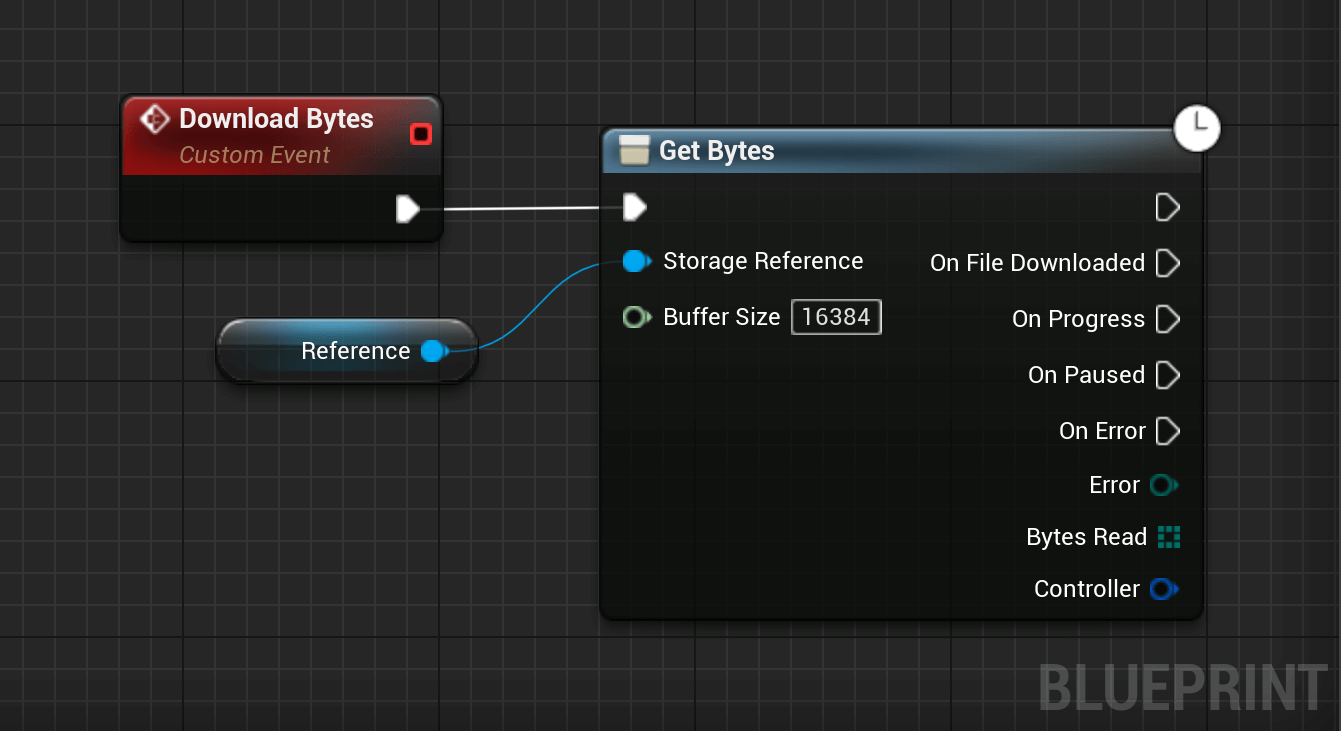
Download the file to a byte buffer in memory using the GetBytes() method. This is the easiest way to quickly download a file, but it must load entire contents of your file into memory. If you request a file larger than your app's available memory, your app will crash. To protect against memory issues, make sure to set the max size to something you know your app can handle, or use another download method.
#include "Storage/Storage.h"
#include "Storage/StorageReference.h"
// 1. Define the maximum size you are willing to download (e.g., 5MB).
const int64 MaxAllowedSize = 5 * 1024 * 1024;
// 2. Get the reference for the file.
UFirebaseStorageReference* StorageRef = UFirebaseStorage::GetReferenceFromPath(TEXT("images/profile.png"));
// 3. Create a controller.
FFirebaseStorageController Controller;
// 4. Download the bytes.
StorageRef->GetBytes(
    MaxAllowedSize,
    Controller,
    FFirebaseStorageBinaryCallback::CreateLambda([](const EFirebaseStorageError Error, const TArray<uint8>& DownloadedData)
    {
        if (Error == EFirebaseStorageError::None)
        {
            // Data successfully downloaded into the array.
            UE_LOG(LogTemp, Log, TEXT("Downloaded %d bytes."), DownloadedData.Num());
        }
        else
        {
            // Handle error (e.g., if file exceeds MaxAllowedSize, Error will reflect this).
            UE_LOG(LogTemp, Error, TEXT("Download failed. Error Code: %d"), (int32)Error);
        }
    }),
    FFirebaseStorageControllerCallback::CreateLambda([](FFirebaseStorageController& ProgressController)
    {
        const int64 Transferred = ProgressController.BytesTransferred();
        const int64 Total = ProgressController.TotalByteCount();
        if (Total > 0)
        {
            UE_LOG(LogTemp, Log, TEXT("Download Progress: %lld / %lld bytes"), Transferred, Total);
        }
    })
);
Download to a local file
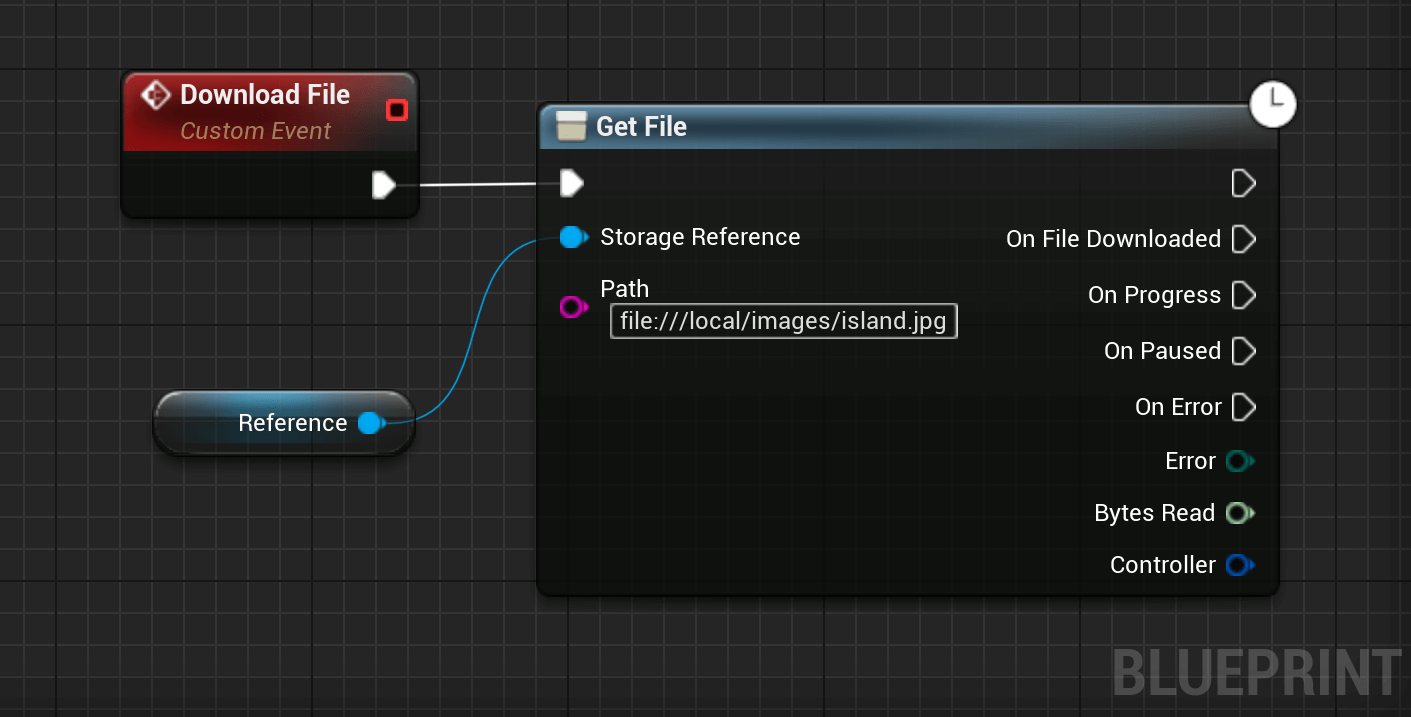
The GetFile() method downloads a file directly to a local device. Use this if your users want to have access to the file while offline or to share in a different app.
GetFile() returns a Controller which you can use to manage your download.
#include "Storage/Storage.h"
#include "Storage/StorageReference.h"
// 1. Define the relative or absolute path on the computer to save the file.
const FString LocalSavePath = TEXT("Saved/Downloads/LargeAsset.pak");
// 2. Get the reference for the file in Cloud Storage.
UFirebaseStorageReference* StorageRef = UFirebaseStorage::GetReferenceFromPath(TEXT("assets/LargeAsset.pak"));
// 3. Create a controller to manage the download.
FFirebaseStorageController Controller;
// 4. Start the download to the local file system.
StorageRef->GetFile(
    LocalSavePath,
    Controller,
    FFirebaseStorageInt64Callback::CreateLambda([](const EFirebaseStorageError Error, const int64 BytesTransferred)
    {
        if (Error == EFirebaseStorageError::None)
        {
            // Download complete.
            UE_LOG(LogTemp, Log, TEXT("File successfully downloaded to disk. Total: %lld bytes"), BytesTransferred);
        }
        else
        {
            // Handle error.
            UE_LOG(LogTemp, Error, TEXT("Download failed. Error Code: %d"), (int32)Error);
        }
    }),
    FFirebaseStorageControllerCallback::CreateLambda([](FFirebaseStorageController& ProgressController)
    {
        // Log progress updates.
        const int64 Transferred = ProgressController.BytesTransferred();
        const int64 Total = ProgressController.TotalByteCount();
        if (Total > 0)
        {
            float ProgressPct = (float)Transferred / (float)Total * 100.0f;
            UE_LOG(LogTemp, Log, TEXT("Download Progress: %.2f%%"), ProgressPct);
        }
    })
); 
Generate a download URL
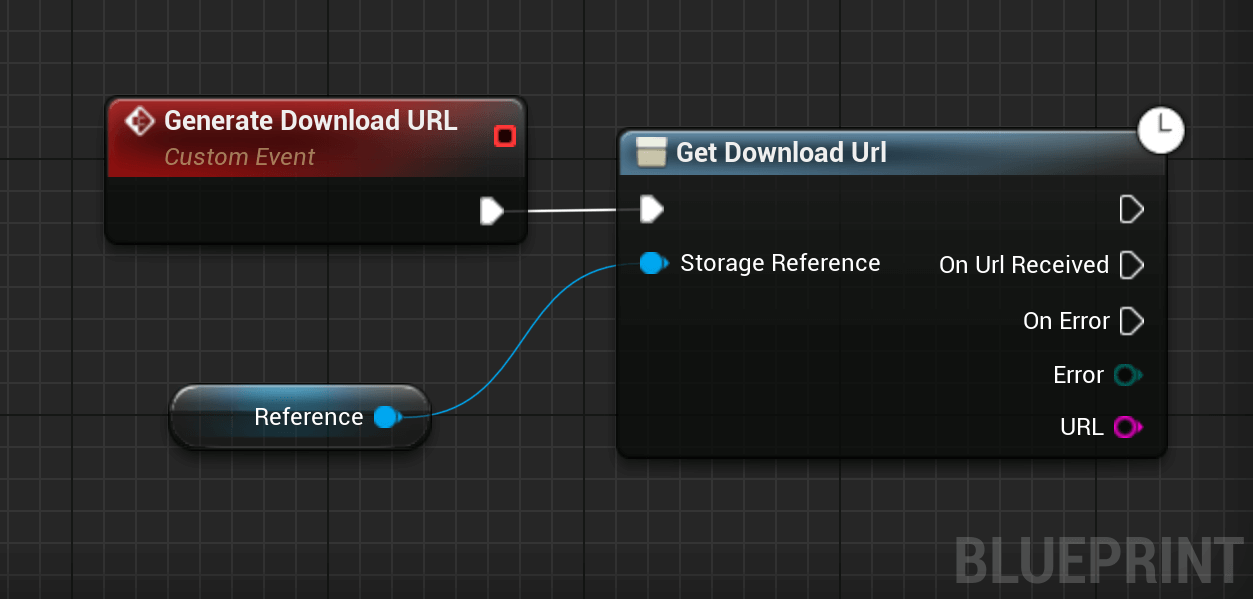
If you already have download infrastructure based around URLs, or just want a URL to share, you can get the download URL for a file by calling the GetDownloadUrl() method on a Cloud Storage reference.
#include "Storage/Storage.h"
#include "Storage/StorageReference.h"
// 1. Get the reference for the file you want to share.
UFirebaseStorageReference* StorageRef = UFirebaseStorage::GetReferenceFromPath(TEXT("public/images/logo.png"));
// 2. Request the long-lived download URL.
StorageRef->GetDownloadUrl(FFirebaseStorageStringCallback::CreateLambda([](const EFirebaseStorageError Error, const FString& DownloadUrl)
{
    if (Error == EFirebaseStorageError::None)
    {
        // Successfully retrieved the URL.
        // This URL can be used in a browser or passed to other download managers.
        UE_LOG(LogTemp, Log, TEXT("Download URL: %s"), *DownloadUrl);
    }
    else
    {
        // Handle error (e.g., file not found or permission denied).
        UE_LOG(LogTemp, Error, TEXT("Failed to get download URL. Error Code: %d"), (int32)Error);
    }
}));