Render a PDF in the World
This section shows how to load and render a PDF to show it in the World. It uses a material to render the material texture on a mesh.
1. Create an Actor
To place something in the world, we need an actor.
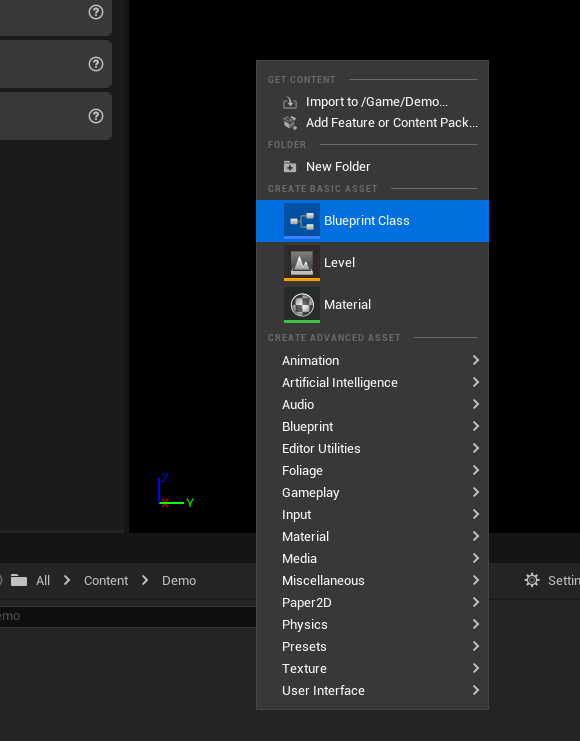
Start by right clicking in the content browser and select Blueprint Class.
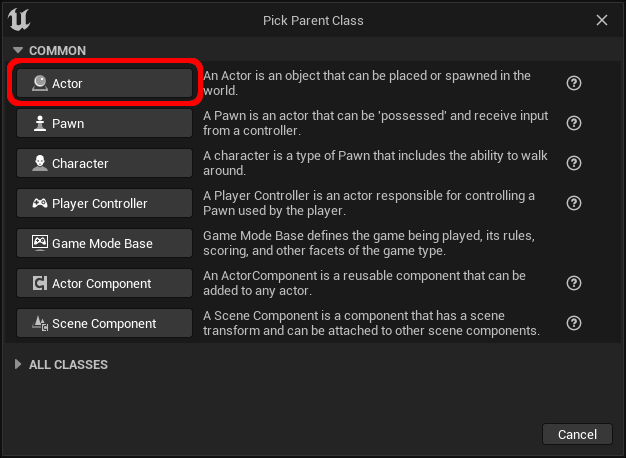
Select Actor as parent class.
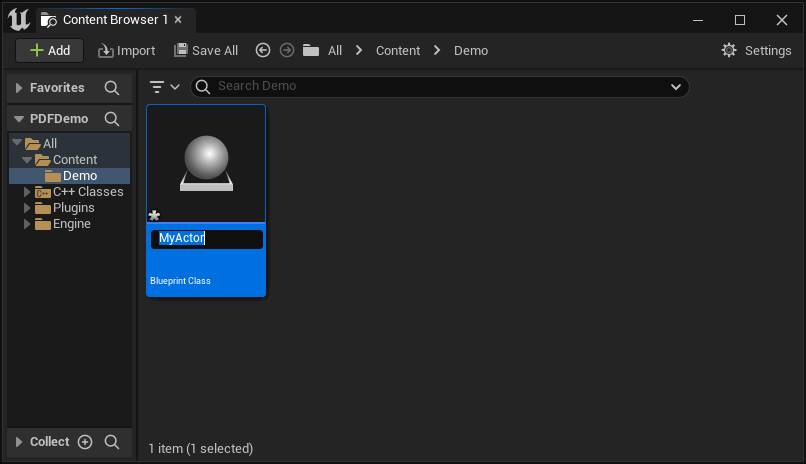
Finish the creation by giving a name to the actor.
Open the actor and add a Plane component.
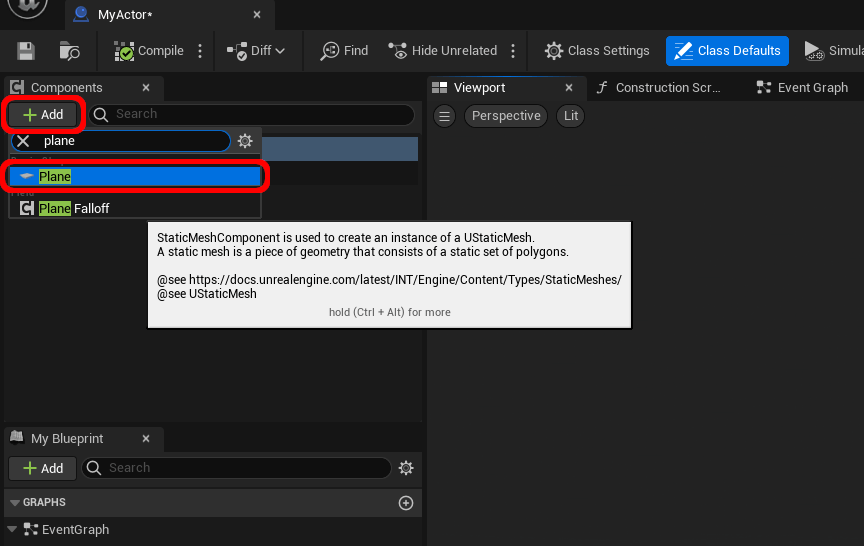
Planes make it easy to have a flat surface but the same can be done for any other meshes.
2. Create the Material
Right click in the content browser and select Material.
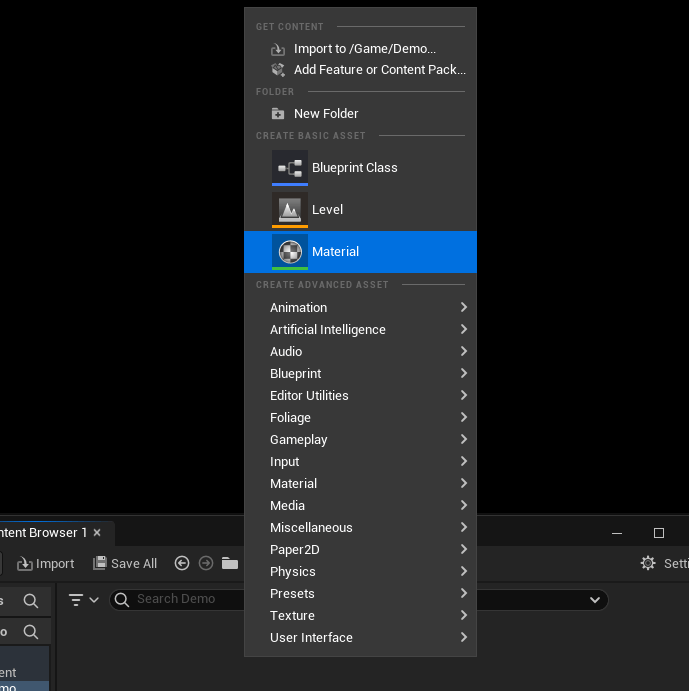
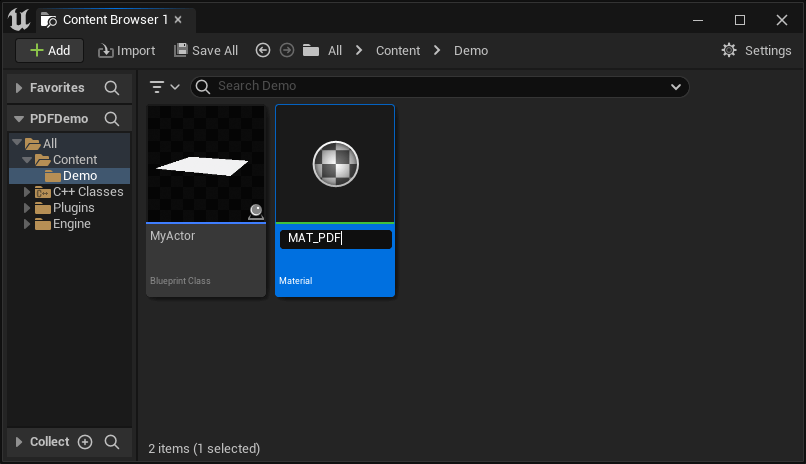
Finish the creation by giving a name to the material.
Open the material by double clicking it. And in the material details panel, switch the Shading Model to Unlit.
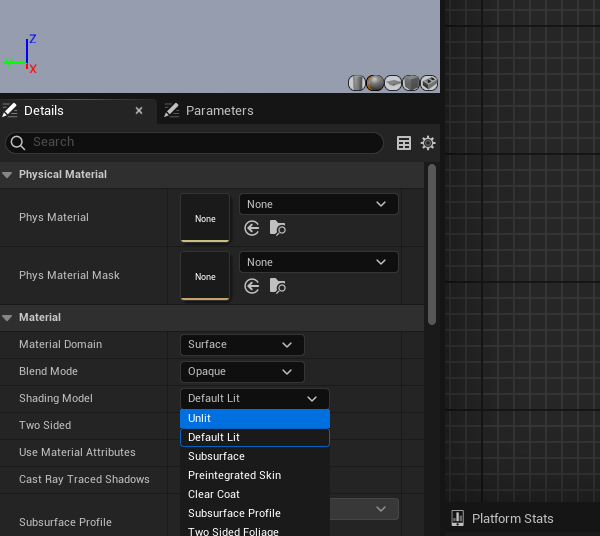
Unlit makes the material ignore shadow and lighting to always be seen in clear. Keep it Default Lit to have shadow affect the PDF.
In the material graph, add a TextureSampleParameter2D node with parameter name PDF_Texture to have the code shown below.
If the pin Emissive Color is disabled, it means your shading model is not Unlit. You can connect it to Base Color instead.
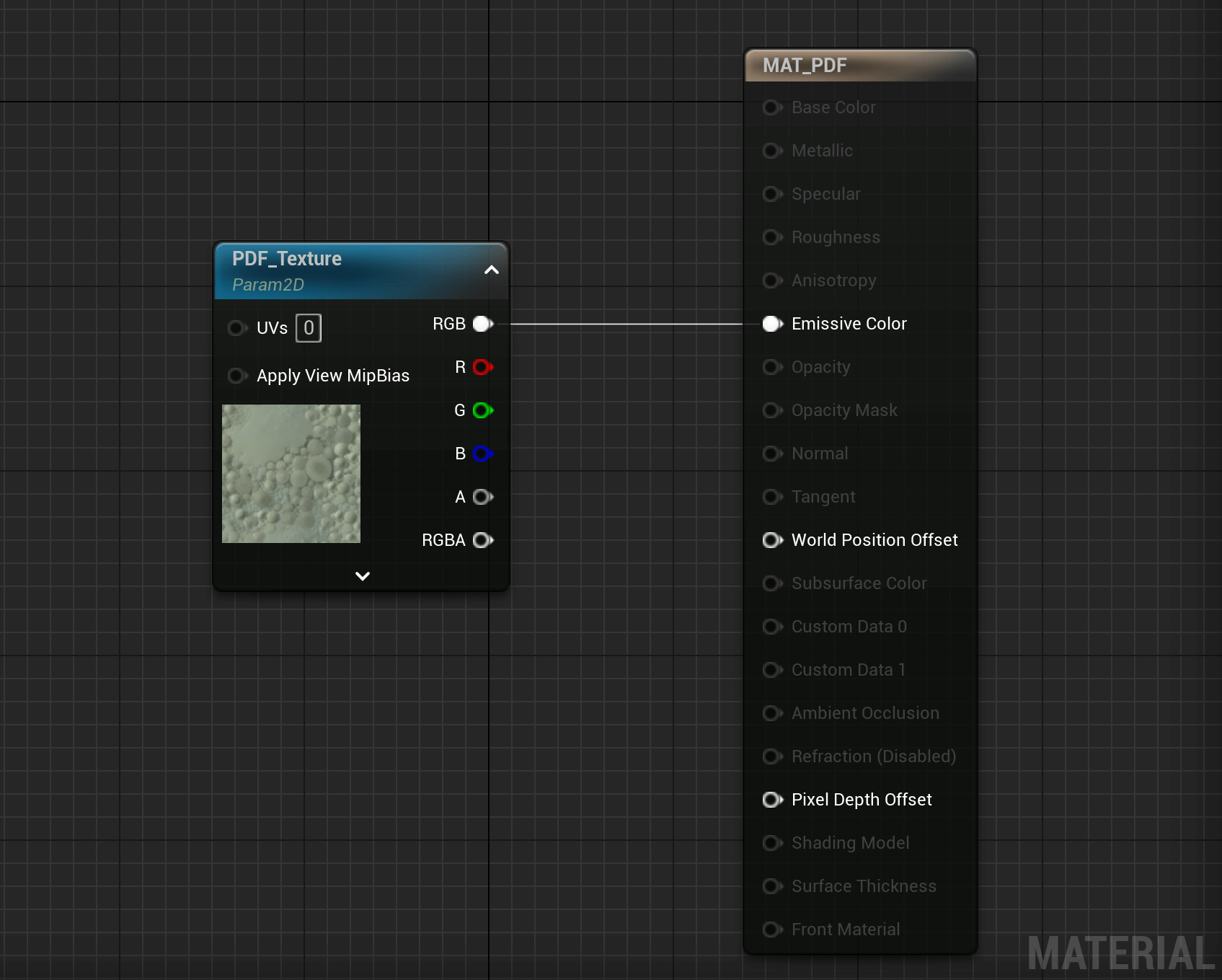
You can copy the code by clicking on the
Copy Codebutton on the image.
3. Render the PDF
Open the actor created in step 1 and add the following code to generate a texture of the first page.
This code loads the PDF and renders the first page at resolution 1080x1920 (portrait of 16:9). If the rendered document is too blurry, this value can be increased. Try to keep it as low as possible for better performances.
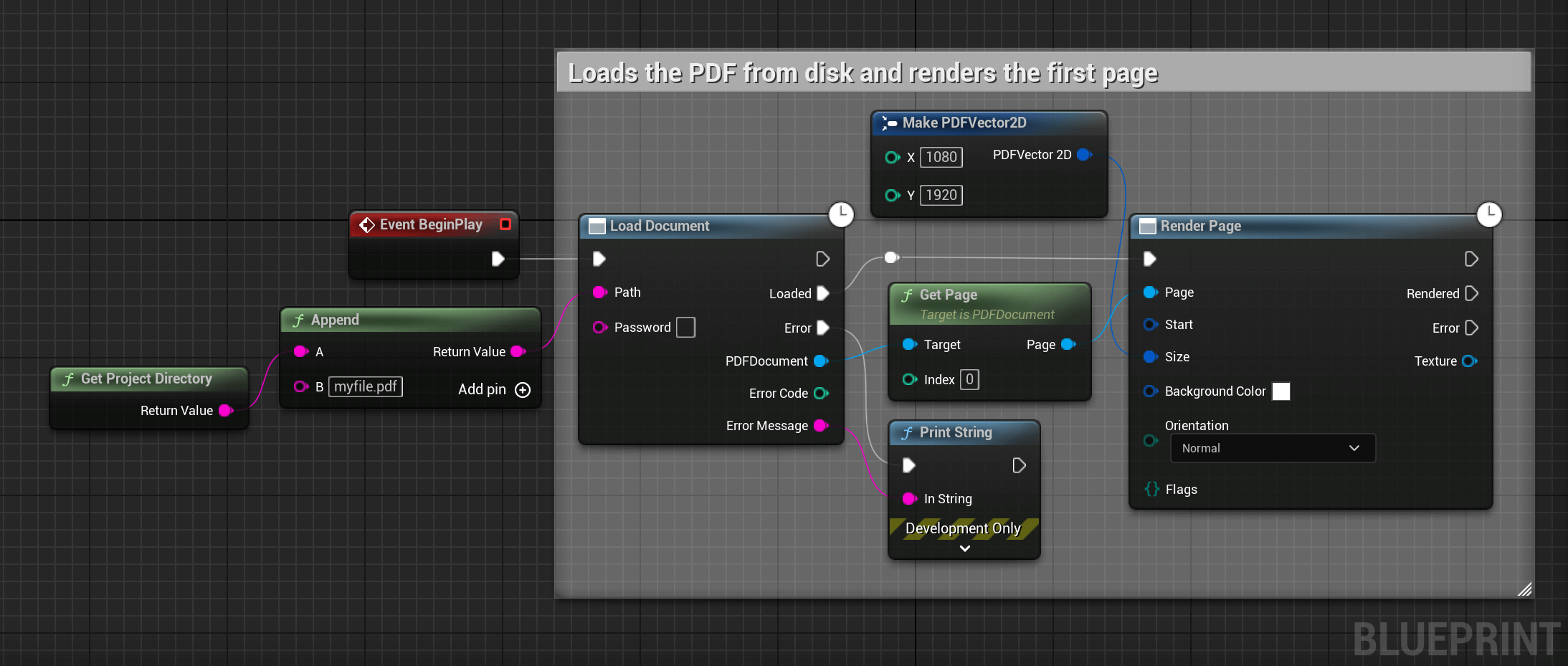
Now that we have a texture, we can pass it to the material so it gets rendered on our plane. Add the following code to make the material on the plane use the texture.
Important: Connect the execution pin to Rendered.
Check that Source Material references the material created previously.
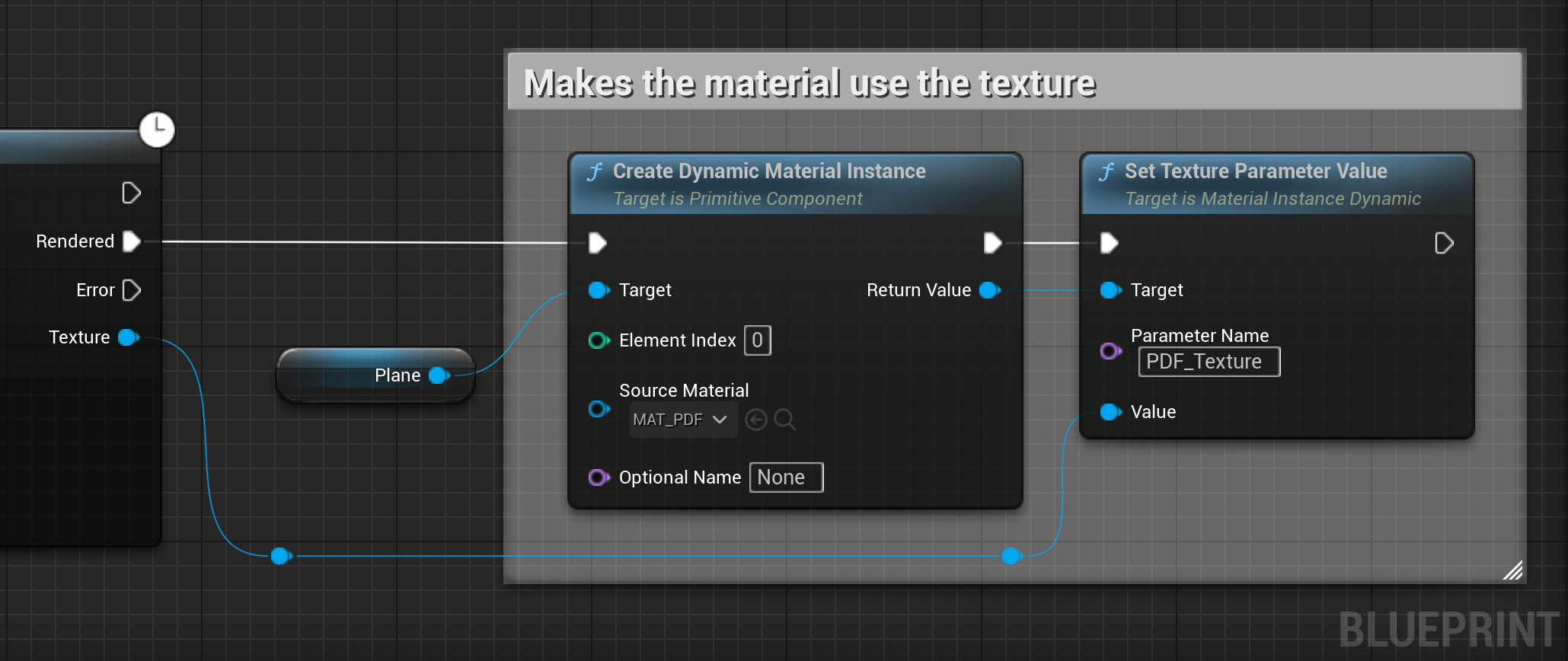
The material instance can be reused: when you want to switch the page, only call Set Texture Parameter Value with the new texture to avoid creating a new material instance.
4. Place the Actor
Drag your actor into the scene and rotate/scale it so it makes the dimension of your PDF page.
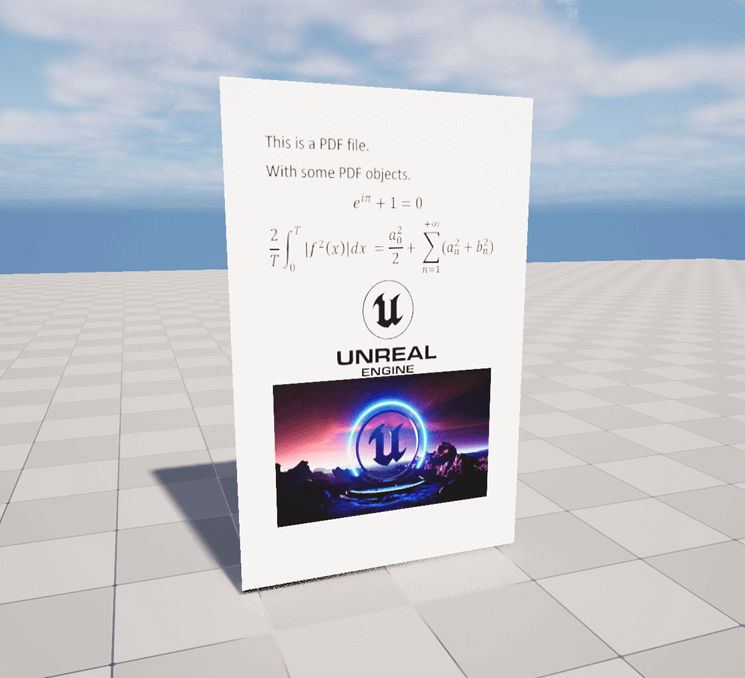
Launch the game (ALT + P) and move to your newly placed actor. You should see the following with your PDF: